

How to Submit Grade Changes
For Faculty
Learn how to submit grade changes via Banner Web.
If you are working Off-Campus:
You will need to do a one time download/set up of the university's VPN for security requirements. See our VPN Setup Instructions.
You will need to be connected via the VPN for any future updates off-campus.
- Login to Banner Web
- Select Faculty Services
- Click Faculty & Advisors
- Click Grade Change Form
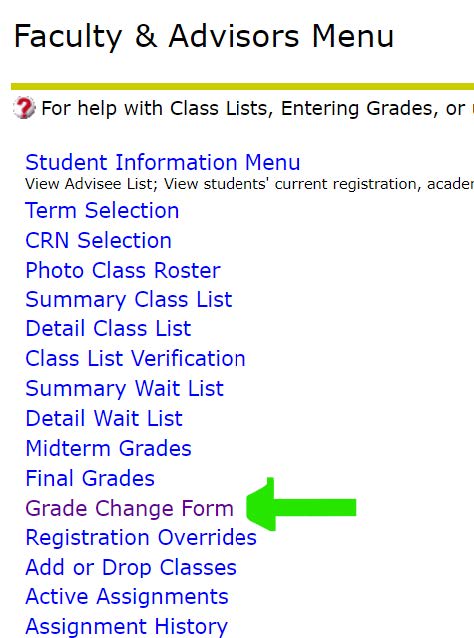
You may be asked to re-enter your AU Login credentials.
A new window/tab will open to a separate banner web page.
The Grade Change Request page will look as such: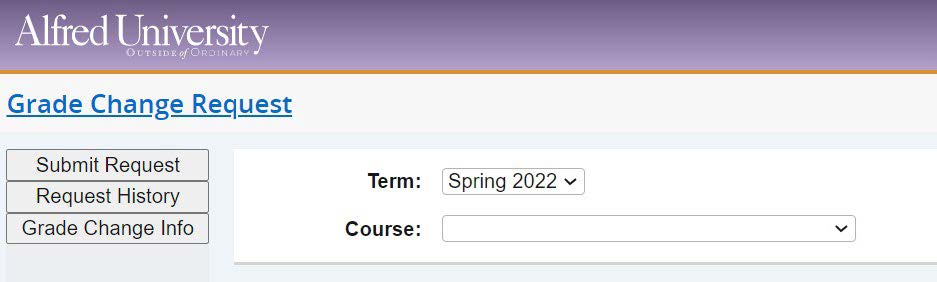
- Select the term for the grade change. (Term student took the course)
- From the Course drop down menu, select the appropriate course.
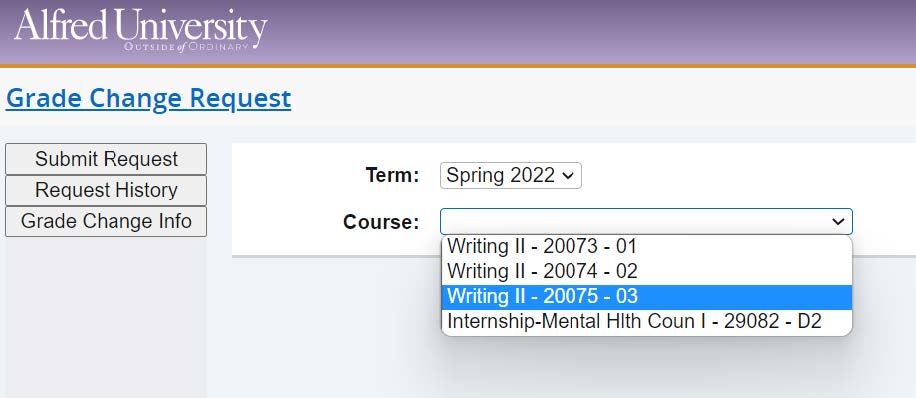
- A Student dropdown menu will appear. Select the student who is getting a change of grade.
The rest of the change form request will appear. - Enter the new grade; select a change code; and type in the details noting the reason for the change.
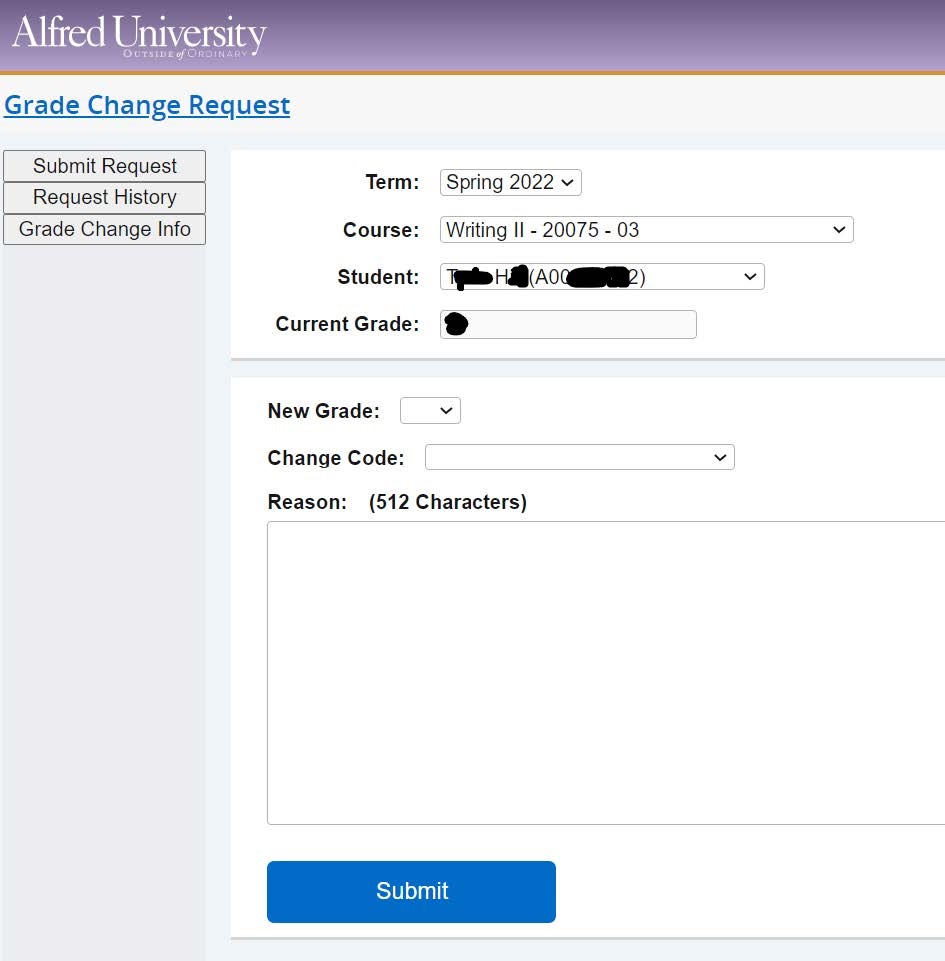
- Click Submit
- You will get a submission notice. Click OK.
You will also get emails when the request is approved/processed.
You can also see all your grade change submissions by clicking on Request History.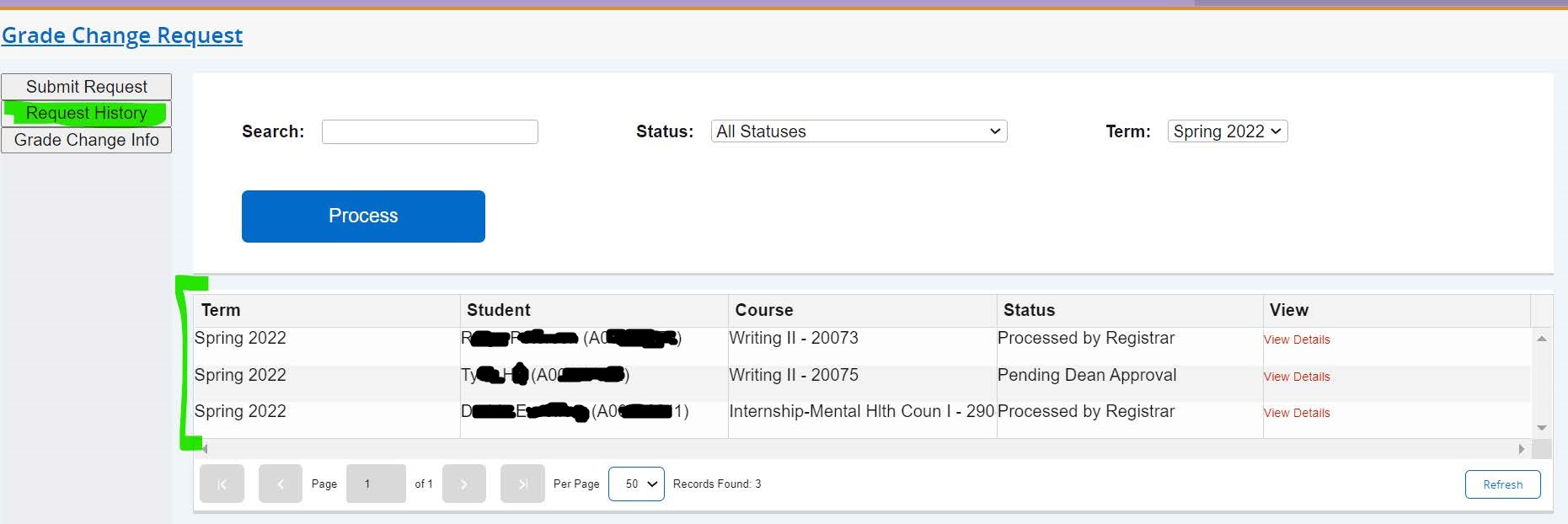
Click on your name in the upper right and select close out when you're done.