

EAB Navigate Student Quick Start Guide
Guidance for setting up your app to serve your needs and preferences. Follow these steps to start using the Navigate app today!
Log In to Navigate Two Ways
- Download the Navigate Student app from your device’s app store.
- Search for your institution’s name in the dropdown menu. Use your institution’s login credentials to log in.
- Access your institution’s Navigate site online.
- Use Chrome or Firefox browser for best results. Use your institution’s login credentials to log in.
Trouble logging in? Email [email protected] for help resolving your issues!
Complete the Intake Survey
The first step to setting up your app is completing the intake survey. Tell us about yourself! Answers you provide are used to create tailored app content. You cannot access core platform features without completing the survey. After you’ve completed the survey, use the following pages in this guide to set up other features.
Make an Appointment
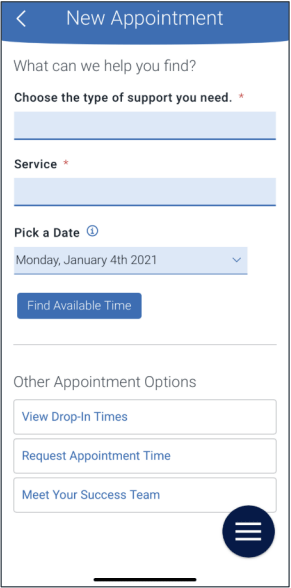
- To schedule appointments, click the purple "Appointments" icon on the left navigation menu and answer questions about your preferred service, date, time, and location.
- You can also view available drop-in times or request appointment times for your preferred service.
- Your Success Team (e.g., assigned advisors, instructors) may also request you meet with them. When this happens, you receive an appointment invitation where you only need to choose a time that works for you!

Set Up Notifications
-
Choose the "Settings" button on your app or on the desktop site.
- Select "Notification Settings". Scroll to find content categories like Upcoming To-Dos and Events, Personal Reminders and Study Buddies.
- Select your preferred method of notification.
- Note: You can select as many notification methods as desired, but you receive multiple notifications if you choose more than one.
- If you select the "Text" option, ensure that your cell phone number is accurate in Navigate. You can do this by choosing "Edit Contact Information".
To-Dos and Events
- See important tasks and check them off as you complete them. Check to-dos regularly to stay on track.
- See a list of key dates and deadlines on the To-Dos page. Add events to your personal calendar for more info.
Hold Center
- See a list of your current holds in the Hold Center. Get more information about how to resolve them by reviewing the details.
- Note: Navigate takes up to 24 hours to reflect any changes if your Hold has been resolved.
Join Study Buddies
Identify classmates who are interested in group study and access their contact information directly in the app.- Opt-in to Study Buddies for the courses you would like help in.
- Once other students have opted into Study Buddies, select the names of the students you want to contact. You will be directed to email these students.
Reports
Here you can see Appointment Summaries, Notes and/or Progress Reports that have been shared with you by your Success Team. You can see reports that were created after your school enabled this feature that you have permission to see. Reports are hidden 180 days after they are created.
Resources
See a list of important services and locations on campus. The "People" tab shows a list of your assigned staff, e.g., advisors and instructors. Click the heart icon to favorite a resource. You can find your favorites in "Settings" under "Favorites".
My Major
Search for academic programs offered at your school or take the Major Explorer quiz to learn about programs and careers that might be a good fit for you.
View Your Class Schedule
See your course schedule at a glance or get additional details such as meeting time, location or instructor.
Notifications
See messages from staff and faculty. Opt-in to email notifications to receive a copy of your messages. Messages older than 90 days are cleared from Navigate.