

Preparing Your Desktop for Remote Desktop - Windows
Follow these steps to prepare your windows desktop so you can remote desktop from another location.
Table of Contents
Preparing your computer at work
Make note of your computer’s ip. You will need this to connect to your computer using remote desktop. Go to ip.alfred.edu in any browser. This will bring up a screen like below. The 149.84 number is your ip address.
Next you need to stop your computer from going to sleep
Adjusting your settings on your computer
To do this use your search bar, located in the bottom left corner of your computer screen, and type in “Power Settings”.

It will bring up an option at the top with the power symbol next to it that says “Power & Sleep”. When you click this it should open a window that looks like the screen shot below.
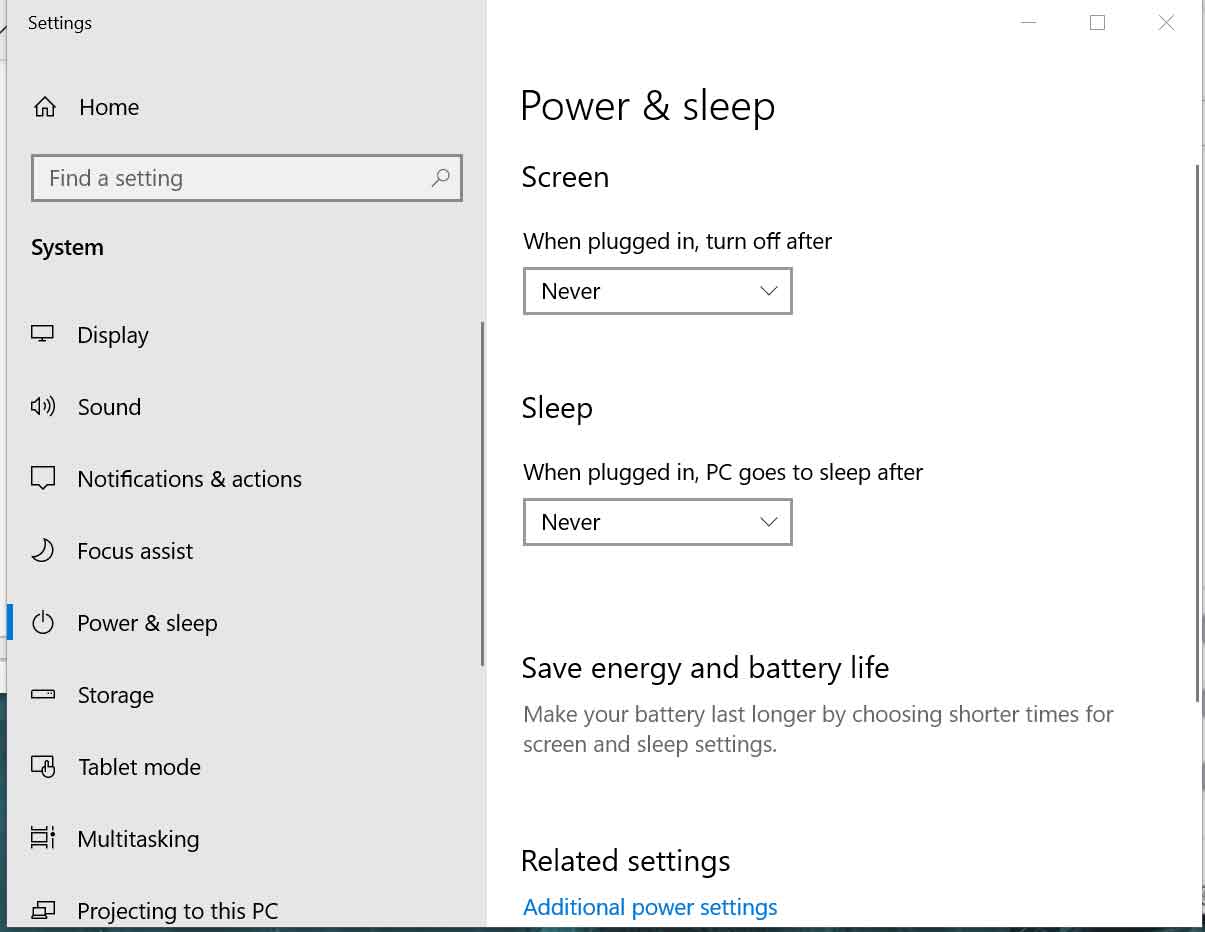
Please make sure that the sleep option is set to never. This will stop your computer from going to sleep so you can remote into it.
Allow Remote Connections to your work computer
Open the start menu again and type remote and click “Allow Remote Access to Your Computer”
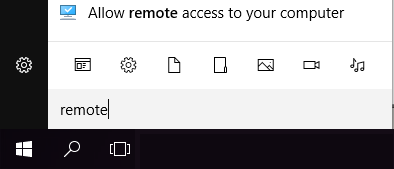
Make sure the remote desktop section looks like this:
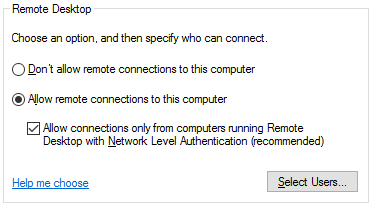
Click Select Users and then click Add.
If it says your user already has access, then you are all set. If it does not, please contact the ITS Helpdesk.
Preparing your computer at home
Set up VPN
In order to remote into your computer at work you will need to first install and connect using VPN.
Connecting to your computer
From there you will need to connect using remote desktop.
When you are done, sign-out of your computer, do not shut down, this will shut down your desktop at the remote location.